Monday, August 28, 2017

Standing up an Ubuntu Linux VM in Azure

1.0 Overview

This article will walk the user through on the detail steps that is necessary to set up and run and ubuntu linux box on the azure cloud platform. This article will be the basis for users to set up linux sandbox on which we could use to further set up containers, and use those containers to run Mule applications.

2.0 Setting up the Ubuntu Linux Box


First you need to login to azure portal. Upon loggin in to azure portal you will see the following screen (depicted at Figure 2.0a)

Figure 2.0a

Click on the plus sign (+) at the top left corner of the screen. Then click on create ubuntu server as highlighted in Figure 2.0b
Figure 2.0b


At Figure 2.0c you will be prompted to key in some server details, key in the name of the server at the first text box, then retain default vm disk type. The third text box will be the root user name, that you will be using both for SSH putty and also for remote desktop later, choose authentication type as password. The following list box would be a subscription that you are on, select a valid subscription. Following that would be the resource group if you don't have an existing resource group create one else use an existing one. The last text box is the location text box, choose the correct location that would be closest to your place of residence, i.e. as I am trying to connect from New Zealand, so I have chosen the locaiton to be “Australia Southeast”.

Figure 2.0c

After keying all fields click on ok and you will be brought to a page depicted by Figure 2.0d

Figure 2.0d

Select an option from Figure 2.0d that would fit your computing needs, for demo purpose I have selected the option with the least computing resource. When you click select, you will be brought to screen Figure 2.0e, for cost conservation remember to select the Auto Shutdown option and specify the time for the auto shutdown to happen.
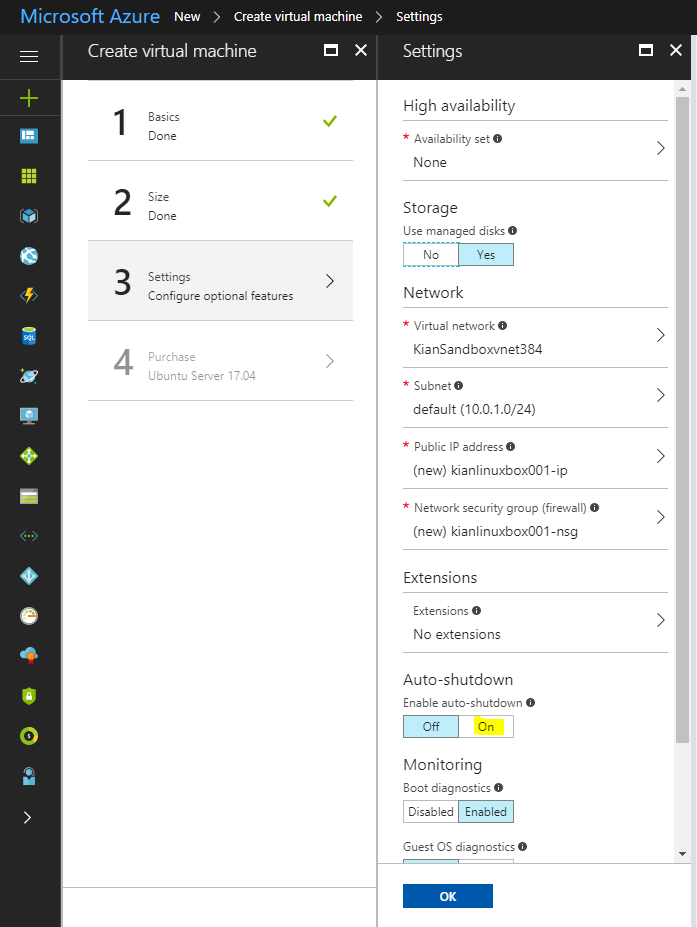
Figure 2.0e

When you click ok you will be brought to the purchase screen, click on acceptance of the agreement and you will proceed to the following screen (Figure 2.0f).

Figure 2.0f

Here you just need to wait for a few minutes for the server to be booted up, this is the time where you will need to download and install putty if you don't have one running on your machine. Once your application is up and running you will see the following screen (Figure 2.0g)
Figure 2.0g
At Figure 2.0g click on the IP address as per highlighted, you will be brought to another configuration screen (Figure 2.0h) here key in the host name and click save.
Figure 2.0h

The we are configuring the hostname is so that we don't need to use the IP address to both putty and also to remote desktop to the linux server. Upon successful configuration and if you click back on the overview menu, you will see the DNS name, this is the hostname that you can use to putty and remote desktop to the linux server (depicted in Figure 2.0i).
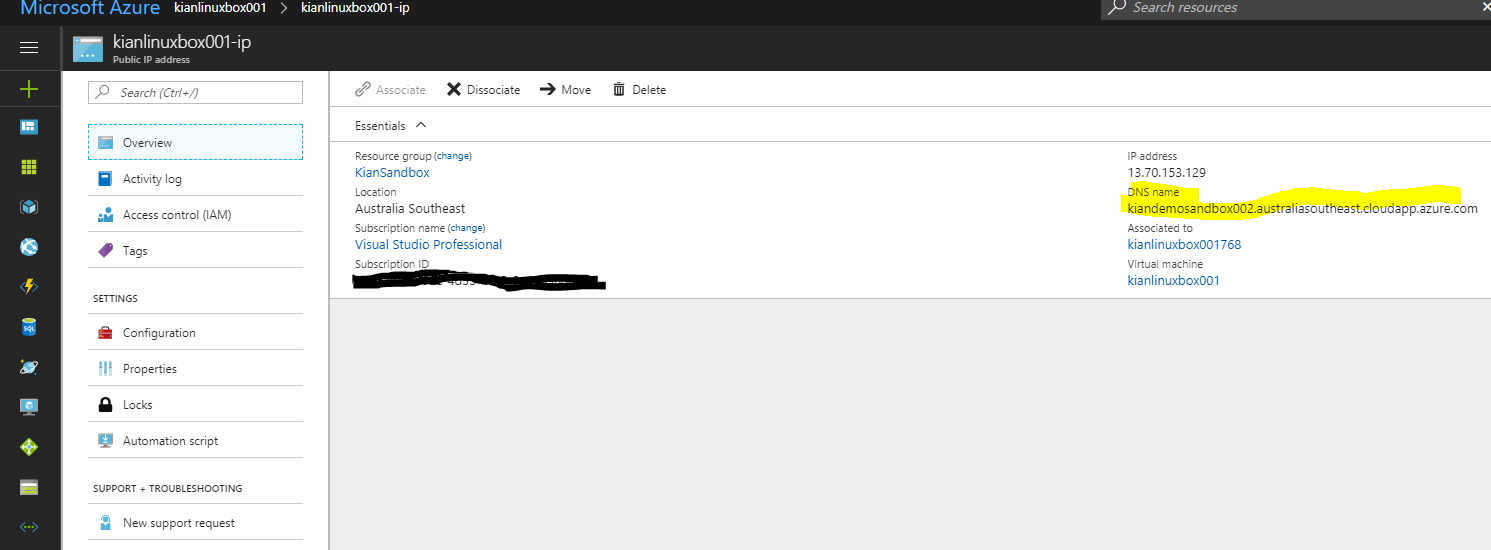
Figure 2.0i

3.0 Putty SSH Connection to Set Up Linux box

Cut and paste the DNS name string in Figure 2.0i to the host name text field at the Putty Screen at Figure 3.0a and click on the Open button.
Figure 3.0a

First time connecting to the server using putty you will get the following screen (Figure 3.0b).
Figure 3.0b

Any second connect or any other subsequent connection the pop up at Figure 3.0b would not appear again, just click on the yes button. Next you will be prompted with the username and password that you have previously configured in Figure 2.0c. Upon a successful log in you will see the following screen depicted in Figure 3.0c.
Figure 3.0c

Once you see this screen it is time to update the ubuntu distribution, you need to type in the following command.

sudo apt-get update

When update is finished you will see the following screen
Figure 3.0c
Now run the following command

sudo apt-get install ubuntu-desktop
And key in “Y” when prompted (as depicted in Figure 3.0d), and installation will commence, you will need to wait for 30 minutes for it to finish installation.
Figure 3.0d

When installation of Ubuntu Desktop is done you need to run the following command to install XRDP so that we could remote desktop to the server.

sudo apt-get install xrdp
Once XRDP is successfully installed run the following command to start the rdp daemon, without starting the XRDP daemon/service users cannot remote desktop to the linux box.
Figure 3.0e

Execute the following command to start up the rdp service at the linux box.
sudo /etc/init.d/xrdp start
If the command executes successfully you will get the following screen (Figure 3.0f), with a green ok started status.
Figure 3.0f

The following command is for restarting XRDP
sudo /etc/init.d/xrdp restart

Now you will need to execute the final command to reboot the server.

sudo shutdown -r now

You need to restart the server for all the changes to take effect, remember to start up xrdp, after server reboot.

4.0 Adding RDP port to the New VM

After starting up the XRDP service, you would now need to head back to the azure portal to open the port for XRDP connection. Go back azure portal select the linux box and go back to the overview screen, from the overview screen select the “Network Interface” (Figure 4.0a).
Figure 4.0a

Next click on the highlighted security group in Figure 4.0b.
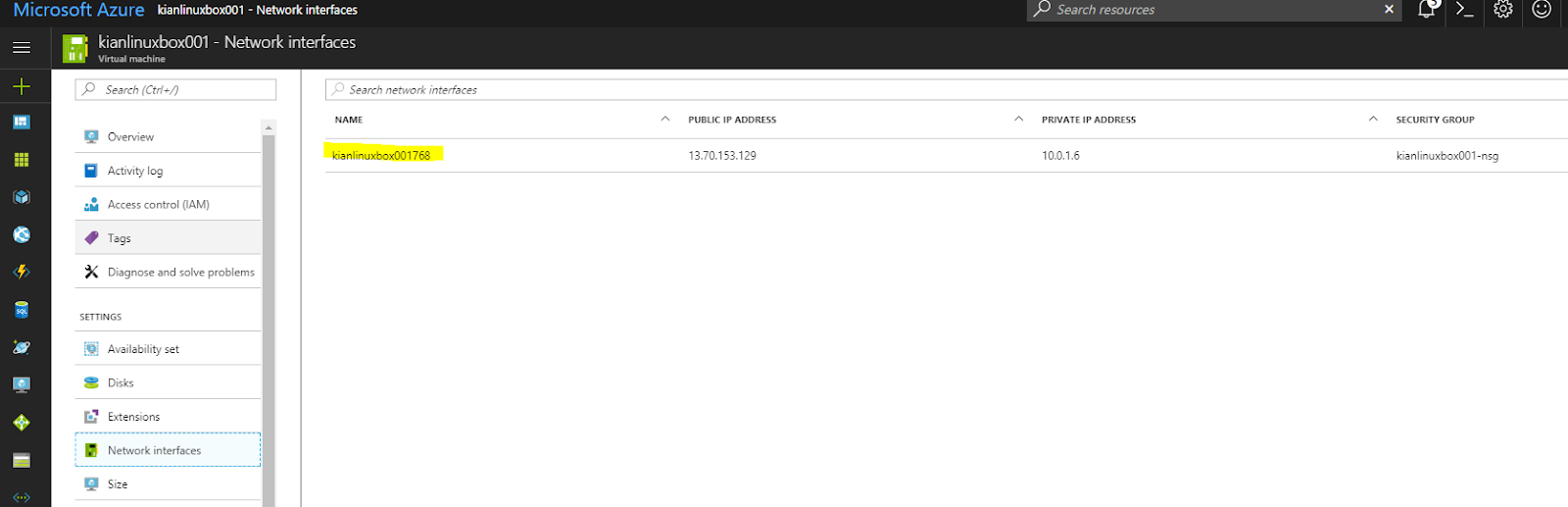
Figure 4.0b

Now click on the Network Security group and click on the hyperlink displayed on the right pane at figure 4.0c
Figure 4.0c
Now click on inbound security and click on add (Figure 4.0d)
Figure 4.0d
Next add port 3389 for XRDP in the following depicted pop up screen (figure 4.0e) and click save.
Figure 4.0e

Upon successful addition of the port, your screen would look like Figure 4.0f.
Figure 4.0f

5.0 Remote desktop connection to the Linux Box

If you are using a windows environment as I am, bring up the remote desktop connection dialog and cut and paste the DNS name from figure 2.0i, to the computer text box at Figure 5.0a.
Figure 5.0a

Upon a successful connection you will be prompted with a XRDP login screen (depicted in Figure 5.0b).
Figure 5.0b

Once you are successfully in you will only see darkness, don’t worry, this is because the UNITY desktop manager is not started, here you need to right click and select open terminal.
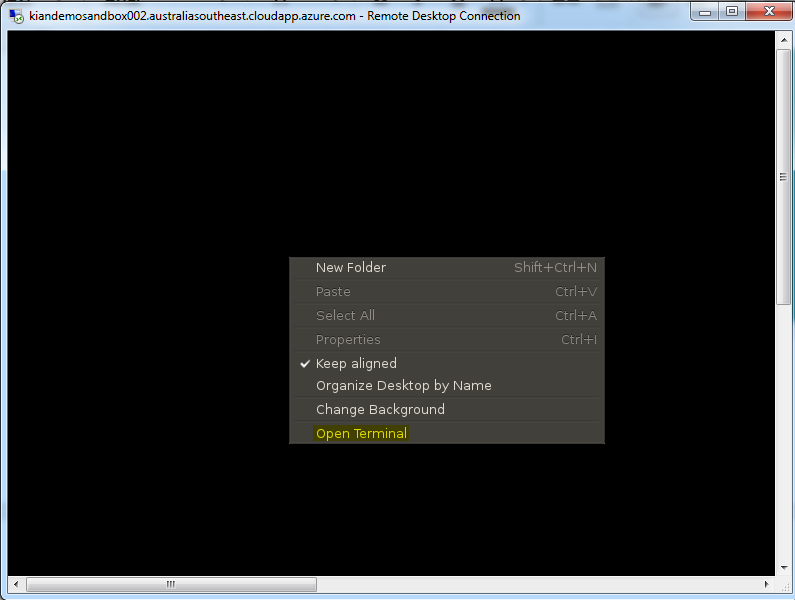
Figure 5.0c

Once terminal is opened inside remote desktop, I want you to type in the following command and press enter.


Type this command and press enter.
exec unity
When unity desktop manager is successfully started you will see the following screen.
And this concludes this article, stay tune for the coming ones as we will explore setting up dockers in the ubuntu box.

Wednesday, August 23, 2017

API Monitor Application (with object store persistence)

1.0 Overview

Figure 1.0 shows the main flow in the API monitoring mule application. Click on this link for source code. This article is based on the the following github commit id of 7f6386ba5e946eb38f9436525d6082dd9e24bc87.
Figure 1.0

I have written a short wiki in github that talks about how the application works, if you are using the application or if you are modifying the application in a way that makes it better, I ask that you please do check in your modifications so that it would be a better health check and monitoring application for everyone.

Currently this application pings urls to see if they are “up and running” or “down and unreachable”, you could also modify it to do tcp pings for host and ports to check if particular endpoints are up and running, i.e you could ping database endpoints etc.

There is an article written in Dzone on how you could automate url health checks via flow designers to periodically call this API Monitoring application.    

This article I would elaborate more about the internal workings of the application, this is so that you would be comfortable modifying it for your organization’s use.

2.0 Digging Deeper into the Code

Figure 2.0a
Figure 2.0a shows the 1st half of the main flow, message processor number (1) is put in place to transform any inbound types especially byte array types into java objects. And message processor number (2) is put in place to ensure java objects of type string is transformed into java.util.HasMap objects. The following table shows the snippet of code that is placed into the groovy script message processor (2).
import groovy.json.JsonSlurperClassic

def jsonParse(def json) {
   new groovy.json.JsonSlurperClassic().parseText(json)
}

if (payload instanceof String){
  payload = jsonParse(payload)
}

return payload

The reason why I have used a JsonSlurper classic instead of the conventional JsonSluper is because the classic creates and object of type java.util.HashMap but the latter create an object of type groovy.json.internal.LazyMap.

The reason why we need a HashMap instead of a LazyMap is because we want to be able to serialize and store the object into the MuleSoft Object store, which brings us to message processor number (3).

The reason we are using object store is so that we could persist the timestamp of last notification, (this is so that we can implement the mechanism of elapsed time checking) as we don't want users to be bombarded with notification emails with every ping. Message processor number (3) retrieves the “lastPing” hashmap that was saved from previous pings.

The next message processor (4) is a collection splitter, it is always used in conjunction with the  collection aggregator message processor. This is akin to a for each scope anything in between (4) and (9) (at Figure 2.0b), would be processing a single element in the array payload.

Figure 2.0b

Message processor number (5) actually pings the url, it will have the smarts to determine if it is a HTTPS or ar HTTP ping. The groovy code snippet for message processor number (5) is as per illustrated by the following table.

import org.kian.mulesoft.*;
boolean isUp = false;

if (payload?.url != null){
  if(payload.url.split(':')[0].equalsIgnoreCase("http")){
     isUp = (new HttpClient()).ping(payload.url)
  }else if(payload.url.split(':')[0].equalsIgnoreCase("https")){
     isUp = (new HttpsClient()).ping(payload.url)
  }
}
return isUp;

As you can see the code block calls two custom classes namely the HttpClient or the HTTPSClient depending on the URL string that would be passed to it. The ping would return true if the url is reachable and return false otherwise.

The next message processor (6), is another groovy message processor that appends new data to the original payload, the following code snippet shows the internal groovy code, as discussed earlier message processor number (2) converts the JSON input payload to java.util.HashMap, so for us to append more information to the original payload so that it could be passed back to the user calling the api we use the HashMap.put method.
payload.put("isUp", flowVars.isUp)
payload.put("notification_timeStamp", (new Date()))
payload.put("ping_timestamp", (new Date()))
return payload

The next message processor (7) (from figure 2.0b) is a choice flow control scope. The choice flow control check’s if there was a previous ping attempt, this is possible because the application stores an object of the ping result into MuleSoft’s default object store, if there was a previous store message processor number (3) the choice flow control scope would then go to the subflow that (8a) checks if the interval has expired before deciding to send a notification, otherwise it would go to the subflow that (8b) sends a notification (if the ping returns negative results).

At message processor number (9) which is a collection aggregator would then collect the individual result payload, i.e. if there are 2 elements in your original jason input payload it would collect the processing results (output payload). Message processor number (10) is where the object store hashmap is constructed. The constructed object would look like figure 2.0c.

Figure 2.0c

The reason I have constructed the object as such, is so that it could easily be retrieved and the notification interval versus the actual elapsed time could be easily inspected. The object structure that you see in figure 2.0c is created from message processor number (10). The following shows the groovy snipped code in number (10).

def objectStoreStuct = [:]
println payload.getClass().toString()
for(int i=0; i < payload.size(); i++)
{
  objectStoreStuct.put(payload[i].name,payload[i])
}

return objectStoreStuct

Message processor number (11) stores the current ping into mule’s default object store with the key of “lastPing”. And the subsequent message processors after that is just there to prepare an output payload for the user.

4.0 Munit Test

I have added one MUNIT test to test against the application, you could always expand on this as you add in more code to increase its health check utility.
The MUNIT test I have added has about 60% test coverage, it is essentially a service test as I have all outbound endpoints and also the object stores mocked, which means the test is siloing the health check application in its test (hence making it a service test with the prefix of STxxx).

5.0 Clearing Object Stores

When you run this health check application it would persist object stores, if you want to delete/clear the persisted object store there are different ways to do it depending on how you are running the application. The following subsection would give an elaboration on ways to clear them. If you know of any other ways please do post your comments in the comments section of this article.  

5.1 Clearing Object Store in Anypoint IDE

If you are running the health check application on your anypoint IDE, the following steps are how you clear the persisted object store.

Right click on your project, then go to Mule, then navigate to “Clear Application Data”, if you click on, the IDE would delete the persisted object store (as depicted in figure 5.1).
Figure 5.1

5.1 Clearing Object Store in CloudHub

If you have deployed the health check solution into cloudhub, you would then need to clear the persisted object store in the Runtime Manager.

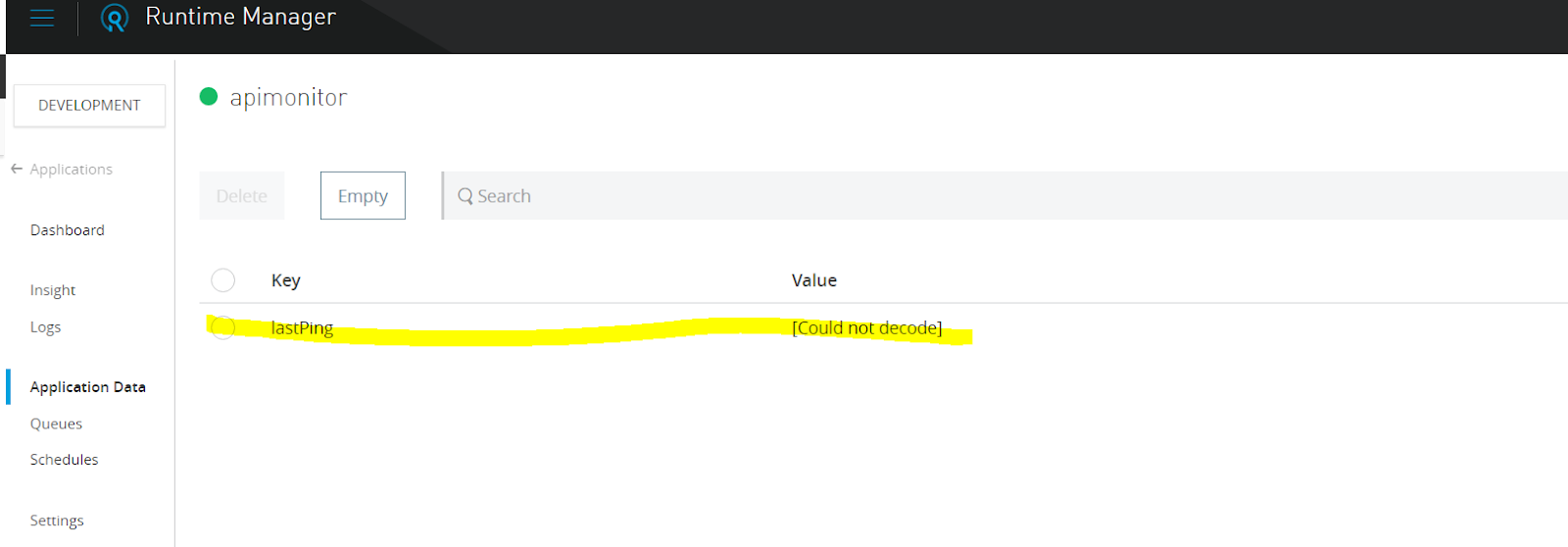
Log in to Anypoint Cloudhub and go to runtime manager, at runtime manager click on your application and at the left menu pane select “Application Data”, and from the menu you will see your persisted HashMap with the key of “lastPing”
Figure 5.2

Click on the “lastPing” radio button and click on the delete button at the top of the screen, this will remove/clear/delete the persister object.

6.0 Conclusion


This application is created to conduct health check on your api’s, you could also further modify it to do TCP pings to conduct health check on other endpoints. I have created this health check api so that the MuleSoft community could use it, this article has demystified its design and build, the next step is for you do download it use it and if you find that it needs improvement then contribute to the cause by checking in your changes to github so that the programs utility could be increased and would make the lives of MuleSoft developers and operation personnels easier.